Your guide, step by step.
First the settings with an adult. Then words, phrases, question and writing.
Issue 13 November 2026 · Site: https://italeena.com/ · Figures with demonstration examples, without personal credentials. It touches a figure to see it enlarged.
First access: configure the tutor before starting
The site opens immediately. To get new fixes you need to connect at least one service allowed and available.
1. Open the site and choose the language
- Go up https://italeena.com/. You don't need to install a program and you don't need an account ITAleena. Choose Italian, Español, Français, Deutsch or English. The instructions here refer to the Italian names; in the app change with the language chosen.
2. Before the tutor, check requirements with an adult
- Read chapter 1: each service has conditions, minimum age, odds and possible costs. A parent key does not cancel restrictions of the provider.
3. A path without gluing keys API: Puter
- Press the gear to the top right. Open “For a parent: services and keys API”. Leave “Artificial Intelligence Service” on “Automatic · Gemini Primary → Secondary → Puter”. If you use only Puter, leave the fields empty Gemini Primary, Gemini Secondary and OpenAI.
- Press “Collegate” Puter”. If it appears that Puter in the official window, sign in to an account that is suitable for the intended use; go back to the app and search “Puter connected.” The app does not require a key PuterPersonal shares and credits must be available.
4. Choose dictation and voice, then save
- To record phrases choose “Puter · personal accounts” in “Detail in the phrase workshop”. To listen to them, choose “Puter · natural voice” in “reading service”. These are the initial choices of a new configuration; check them if you had already used the app.
- You can choose “Device · free voice” for reading, if the device has a voice in the chosen language. You can always write without using the microphone. Press “Save Settings”: X and “Annulla” do not save the fields.
5. Do you prefer a personal key? Set up before the test
- Only for use permitted by the relevant terms: for Gemini creates a key in Google AI Studio and insert it in “Gemini Primary · key API (optional)”, leaving the tutor on Automatic. Secondary It is not mandatory. For OpenAI Choose from OpenAI in the service of the tutor and enter your key OpenAI. A ChatGPT subscription does not automatically include credit API.
- If you choose Whisper need the key OpenAI even when the text tutor is Gemini. If you choose the voice Gemini I need you. Gemini Primary even when the text uses Puter. All settings must be saved. Chapters 4–6 explain accounts, fields and combinations.
6. Make a simple test
- Open “Synonyms in context.” Write “important” and, in the optional context, “This book is important for research.” Press “Find the synonyms.” When alternatives come with explanations and examples, the tutor is responding. In other languages, he uses a word and a phrase in that language.
- If “Collegate” appears PuterIf a key is required, check the selected service. If a quota or credit limit appears, check your account: it is not enough to open the site and it is not an error to resolve by adding accounts to bypass the limits.
- For the voice, open the Workshop of phrases and try the speaker button of the example. For the microphone, you press the dictation command and authorise the browser only on italeena.com. Do not start recordings without the consent of the people involved.
7. Remember where the setup remains
- Keys, choices and notebooks remain in the browser profile used for italeena.com. Another browser, phone or address must be configured separately. Languages share keys in the same browser, but have notebooks and distinct drafts.
- If you used a version on your computer first, the old data is not transferred to the site by yourself. Export what you want to store before you delete that version.
1. Before starting
Welcome and welcome ITAleenaThis is not a race: it counts to understand and try again.
For you
- Read the instructions with an adult. You don't have to know difficult words to start: a simple word or phrase is enough.
- Do not write address, phone, password, full school name or private information about you or other people. Do not record companions and teachers.
- Artificial intelligence can be wrong. Compare explanations and facts with the book and the teacher. A tutor vote is not an official vote.
For adult: first check out the services
- This guide describes the current version, does not certify the suitability of a service for all minors. API or recordings for a minor until age, condition of the supplier, costs and data processing have not been verified.
- Gemini API: the terms consulted take at least 18 years and prohibit API For this school app it is not a path for children to activate. A key to a parent does not eliminate that prohibition.
- Puter The consent of a parent does not cancel a minimum contractual threshold. In Italy, for online services based on consent, the threshold of autonomous consent is 14 years: this does not automatically legitimize or adapt any service.
- For OpenAI API You must check the conditions for developers and the indications under 18; this app does not configure zero data retention. Do not assume that a ChatGPT subscription or parent's consent solves all requirements.
What you can do without sending an AI request
- Read the guide and the initial example, see the data already saved, search in the notebook, write a draft in the workshop, choose a point or a goal.
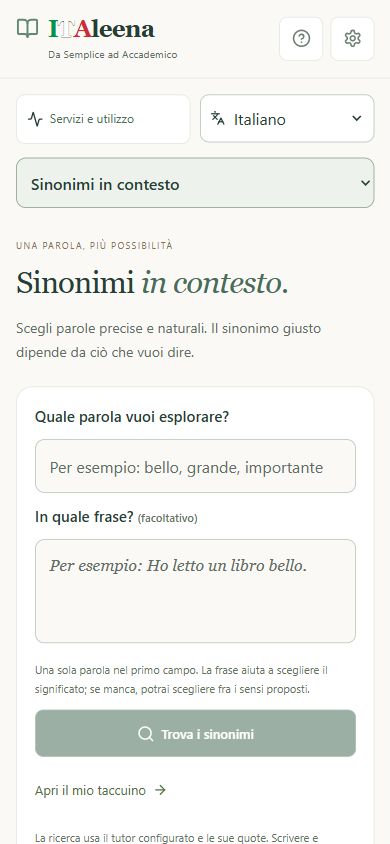
2. Open ITAleena and orient
First open the app. Before using online features, complete the settings to an adult.
Open the site, without installing programs
- Open it. https://italeena.com/ In your computer, tablet or phone browser, you don't need to install Node.js, run commands or keep another computer on.
- For the new results, you need an Internet connection and at least one service of the configured and available tutor. Puter and does not provide a key API common.
- If the site does not open, check the address and connection. If the browser shows a security notice, do not ignore it: ask for assistance. For the first access follow the configuration tab at the beginning of this guide.
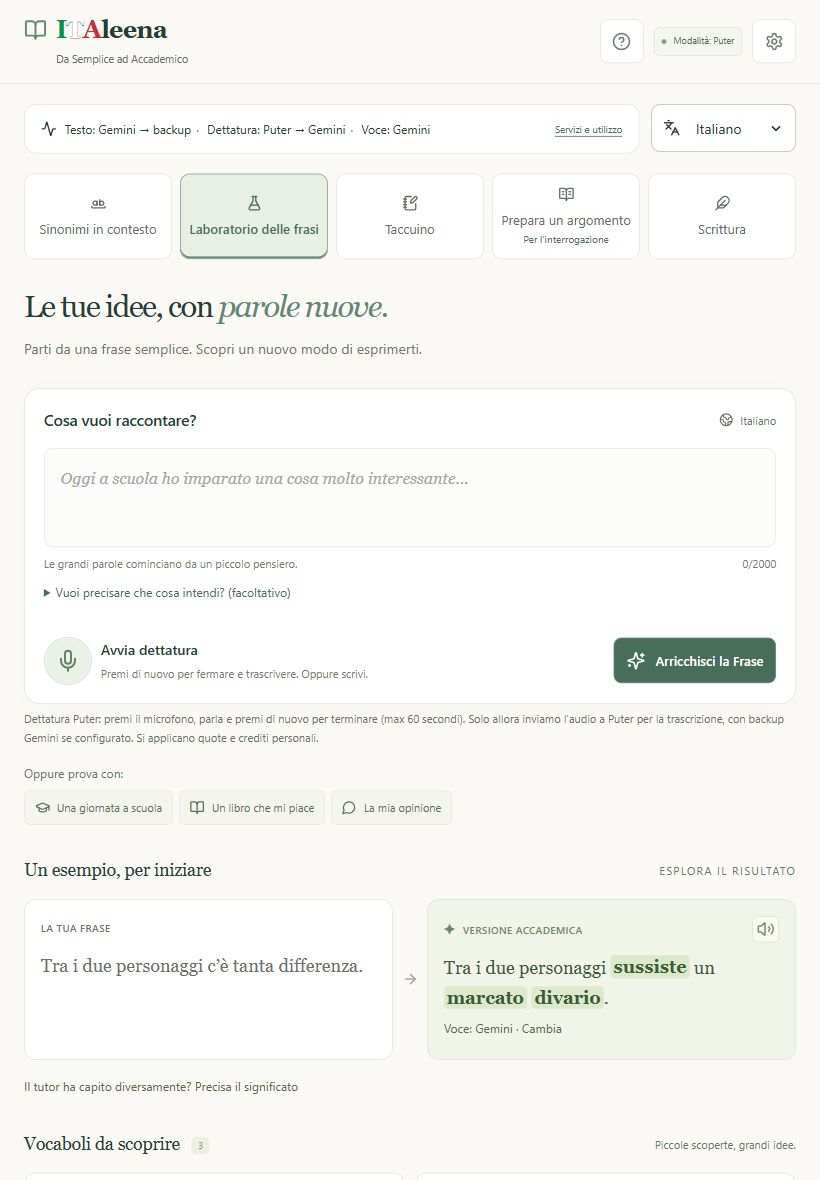
The five spaces, from above
- Synonyms in context: explore a word and choose an alternative suitable for meaning.
- Workshop of phrases: improves a short phrase, listen to it and test new words.
- My notebook: find words, phrases, sources and resume.
- Prepare a topic · For the question: register or write an entire exhibition and make it more academic.
- Writing workshop: build a story, a theme, a description, a biography or an argumentative text.
Computers, tablets and phones
- On the large computer you will find the side menu. On the tablet you will find five tabs of navigation above the content. On the phone you will open the menu showing the name of the current section and choose one of the five spaces.
- Language and Services and use are on the same line. On the phone tap Services and use to open the details; close them to return to the compact view.
Three commands to remember
- Logo logo ITAleena: return to Sinonimi in context. Also updating the page opens this section.
- Gear: Open Settings. The buttons can be temporarily blocked while the tutor works or the microphone registers.
- Services and use: shows the active service and the status of requests. The guide and privacy open in a separate tab, so do not abandon the job.
Choose your language
- In the selector next to Services and use choose Italian, Español, Français, Deutsch or English. The choice changes interface, examples, tutor, dictation and reading. It does not automatically translate your already saved texts.
- Each language has its own notebook, its drafts, recordings and proofs. Returning to Italian you will find the existing Italian data. API and the connection Puter are shared in the same browser.
- The app saves open drafts and then reloads the page in the chosen language. If the rescue fails, the language is not changed.
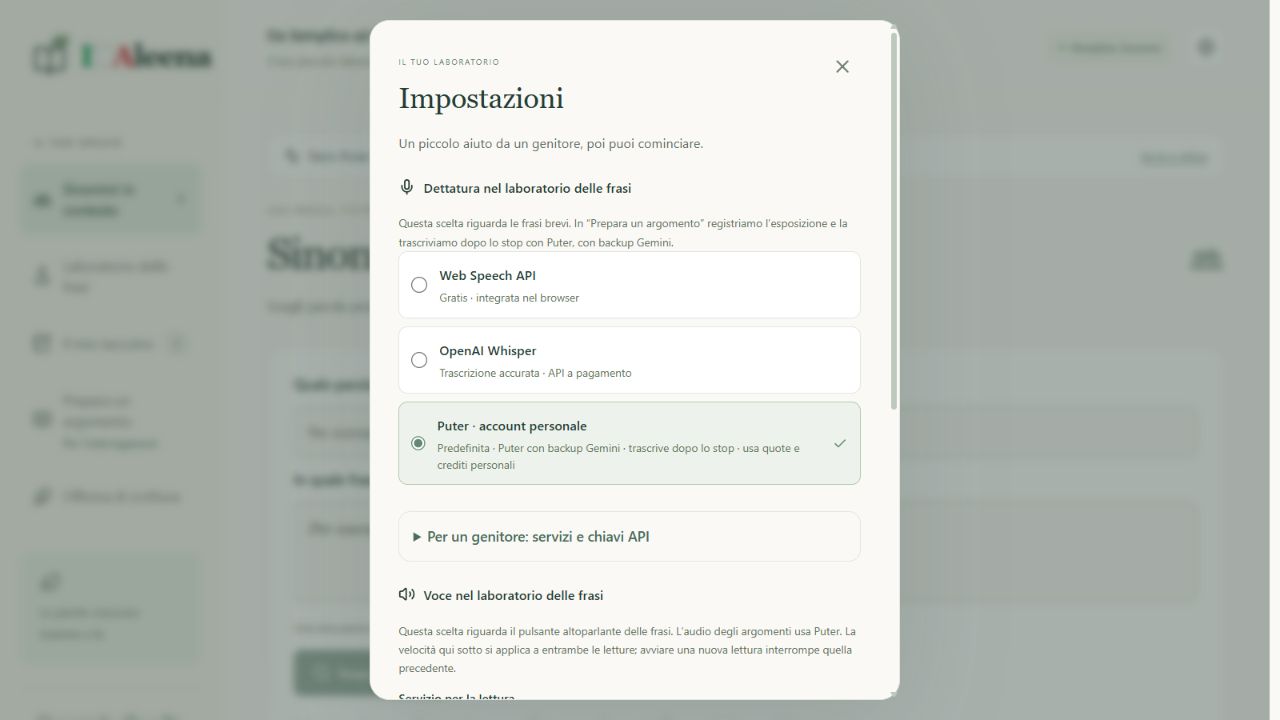
3. Settings: Do it with an adult
The settings concern three different things: who corrects the text, who transcribes the voice and who reads out loud.
The correct sequence
- Open Settings and then “For a parent: services and keys API”.
- Check first the requirements of chapter 1. Choose only a service that can be used for age and for this project. Do not enter a key to bypass a restriction.
- Configure the tutor and, if allowed, colleague PuterThen choose dictation and reading. Finally press “Save Settings”.
- “Annulla” or the X close without applying the changes to the fields. Puter is an external access: closing the window without saving is not equivalent to disconnecting from Puter.
Where to save your choices
- Preferences and keys are kept in the profile of this browser. They do not transfer by themselves to another computer, browser, profile or address of the site.
- A key API It is like a personal key to the service: it is not to be put in the phrase, in the chat, in the photos or in an email of assistance.
- On a shared device, it uses separate profiles. In private navigation, the rescue can disappear when closing. Do not delete the site data before exporting what you want to store.
4. Connect Puter
Puter can provide the tutor, transcription and voice. Does not require to paste a key Puter in the app, but it requires a allowed account and availability of share or credit.
Step by step, for a suitable user
- In the settings open “For a parent: services and keys API”. Press “Collegate Puter”.
- If it appears Puter is ready, press again “Collega Puter”. The first click can serve to load the service.
- In the official window of Puter Sign in with your account. Any registration and acceptance of the terms should be evaluated by the appropriate user: do not create false age and do not share passwords.
- Read permissions and costs. Back to top ITAleena and check the writing “Puter then save the settings.
- If the window does not appear, check that the browser has not blocked the required access popup. Do not authorize unknown windows or domains.
What is it?
- Requests use the resources of the linked account. Any free availability has limits; Puter does not mean unlimited use. Real credit and any charges are checked in your account Puter.
- With “Automatic” text mode and fields Gemini empty, the app test Puter. You don't need to add a key OpenAI to use Puter. Access remains subject to age rules and the underlying services.
- To get out Puter use your account checks and manage your permissions there. ITAleena at the moment does not have a button “Disconnected Puter”. It is not enough to delete a key Gemini.
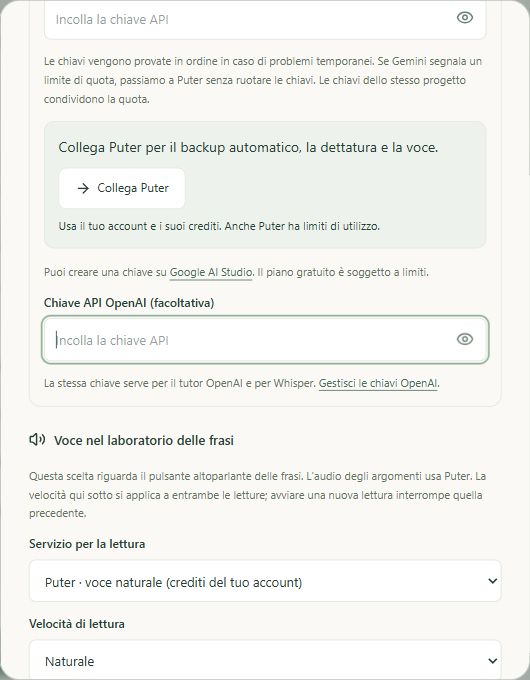
5. Keys API and order of services
This part is for the adult or for those who manage the app. Explains the fields present, without making a prohibited use by suppliers.
Gemini: present fields and limits of use
- The fields are called “Gemini Primary · key API (optional)” and “Gemini Secondary · key API (optional)”. Keys are managed in Google AI Studio: https://aistudio.google.com/apikey . Before creating or entering them, the requirements and prohibitions of Chapter 1. apply.
- In a context actually allowed, it creates a key in the correct project, controls quotation and invoicing, copying it to the field Primary and save. Secondary is optional: it is not necessary to start and does not automatically double the quota.
- The name “Automatic · Gemini Primary → Secondary → Puter” describes the path: in case of temporary problems or access can try the other configured key; if Gemini quota or limit rate, skip Secondary and proof Puter. Do not use different accounts to bypass odds.
OpenAI: technical alternative
- For permitted use, the user who manages the credentials opens https://platform.openai.com/api-keys , create a key and check availability, spending limits and billing.
- In ITAleena choose “OpenAI” as a service of the tutor and paste the key in the field “Chiave API OpenAI”. The same key serves if you choose Whisper for dictation. Do not paste it into other fields.
- The Lean API are a different service from the ChatGPT subscription. A ChatGPT plan does not guarantee credit API. Also the route OpenAI may resort to Puter if necessary and connected.
Check without exposing secrets
- The eye shows or hides a field: use it only away from other people. Do not send screenshots with visible keys.
- If a key is exposed, revoke it from the supplier's website and replace it. ITAleena Don't revoke it.
- Do not save cards or activate payments to overcome a mistake without reading the costs. The app does not guarantee a fixed number of free requests.
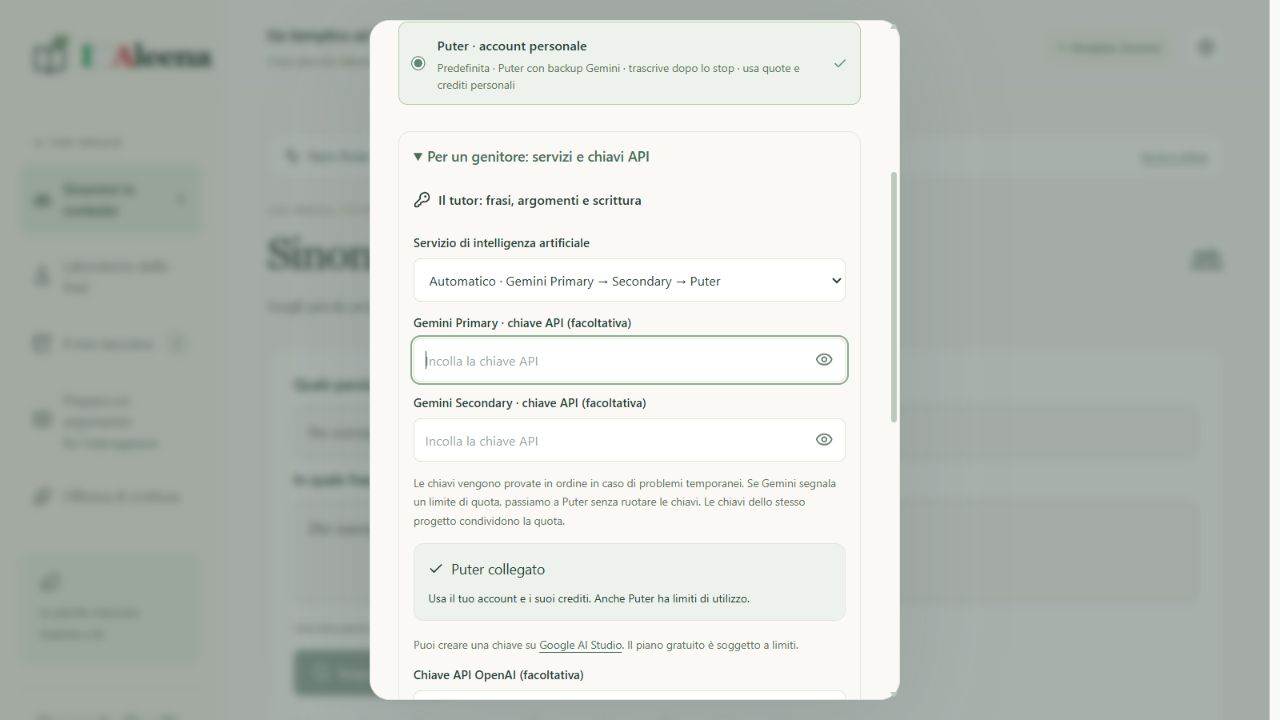
6. Microphone and speaker: they are different
The microphone turns your voice into text. The speaker turns a text into voice. Changing one does not automatically change the other.
Determine a short sentence
- In “Detail in the phrase workshop” choose the engine. In the new settings the initial choice is Puter; choices saved in the past may be different.
- Puter record up to 60 seconds: press the microphone, speak in the chosen language and press again to finish. Wait for transcription. In case of error you can try a key Gemini configured: this is another audio recipient, subject to the relevant requirements.
- Web Speech API The text can appear during dictation. It does not require a key in the app, but the browser can send the voice to its service: it is not necessarily offline.
- Whisper requires the key OpenAI and use its quota. Record the sentence and send it to transcribe it after the stop. You can always write by hand without using the microphone.
Permission and environment
- When you start the microphone, your browser can ask for permission. Send it to the correct site only. Speak near the microphone, in a quiet room, without registering other people.
- If the microphone is blocked, check the site and system authorization with an adult. https://italeena.com/ and give permission only when you press the microphone. Voice is not necessary to write an exercise.
- Do not update the page while registering or while the browser is saving. If the recoverable audio appears, download it or hold it back before registering again.
Listen to a text
- In “Voce in the phrase lab” choose Device, Gemini or Puter. The voice of the device does not require the app keys and depends on the voices installed in the chosen language; it does not guarantee processing always offline.
- Puter send the text to the voice service and use the credit of your account. Gemini use a key and share: the limits of chapter 1. The topics use Puter for reading.
- Choose Slower, Natural or Faster and press “Listen a Test”. The button can become “Find the Test”. Save your choice.
- In the result, press the speaker. Wait if “Preparo” appears. Starting another reading interrupts the previous one. The already generated parts can be listened to this visit without regenerating them. After an update, a new request can be requested.
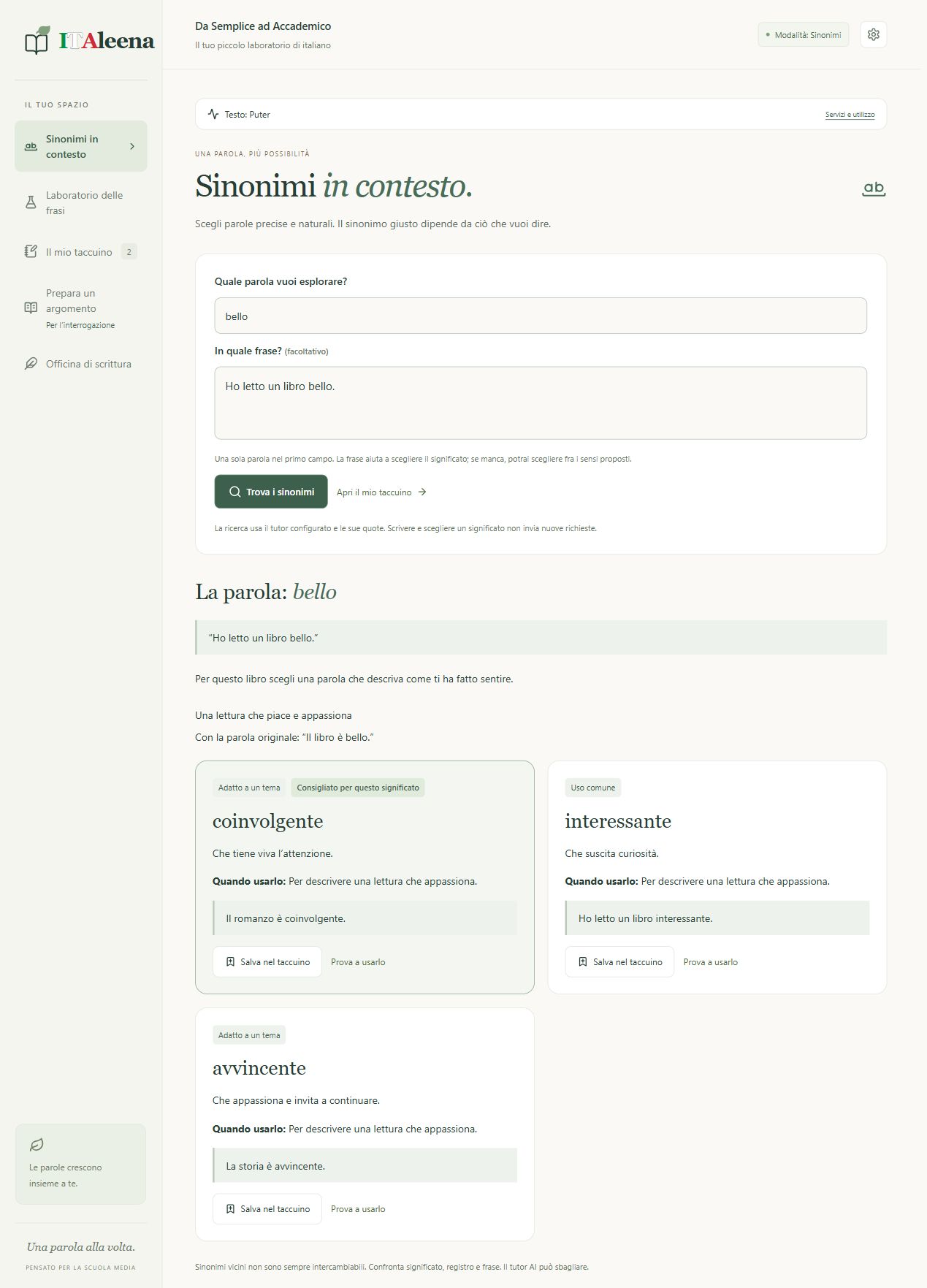
7. Synonyms in context
Use it when you always repeat the same word or want to choose a more precise term.
Try it.
- In the first field, write a single word, for example “nice”. In the second, optional, write “I read a beautiful book.” The limit is 60 characters for the word and 1,000 for the context.
- Press “Find the Synonyms.” This action uses the tutor online. If you need, you can stop the search; the text remains.
- If “What do you mean?” appears, choose the correct one. For example, “big” can indicate size or importance. The choice uses the result already received and does not make another request.
- Read meaning, “When to use it” and example. Labels distinguish Common Use, Suitable for a theme and More formal. “Recommended for this meaning” is a suggestion, not a universal rule.
- Press “Save in the notebook” to keep that term with context, meaning and example. Research is not automatically saved. “In the notebook” indicates that that voice is already saved.
- Press “try to use it” to invent your sentence. The evaluation works as in chapter 9. To find the vocabulary in the notebook and in the workshop you have to save it.
If there are no alternatives
- The tutor can propose fewer alternatives or no natural synonyms. For its own names and precise terms it is not necessary to invent substitutes.
- If you change the fields, the old result remains recognizable with your context. Press again Find the synonyms to update it. Always check which search the cards belong to.
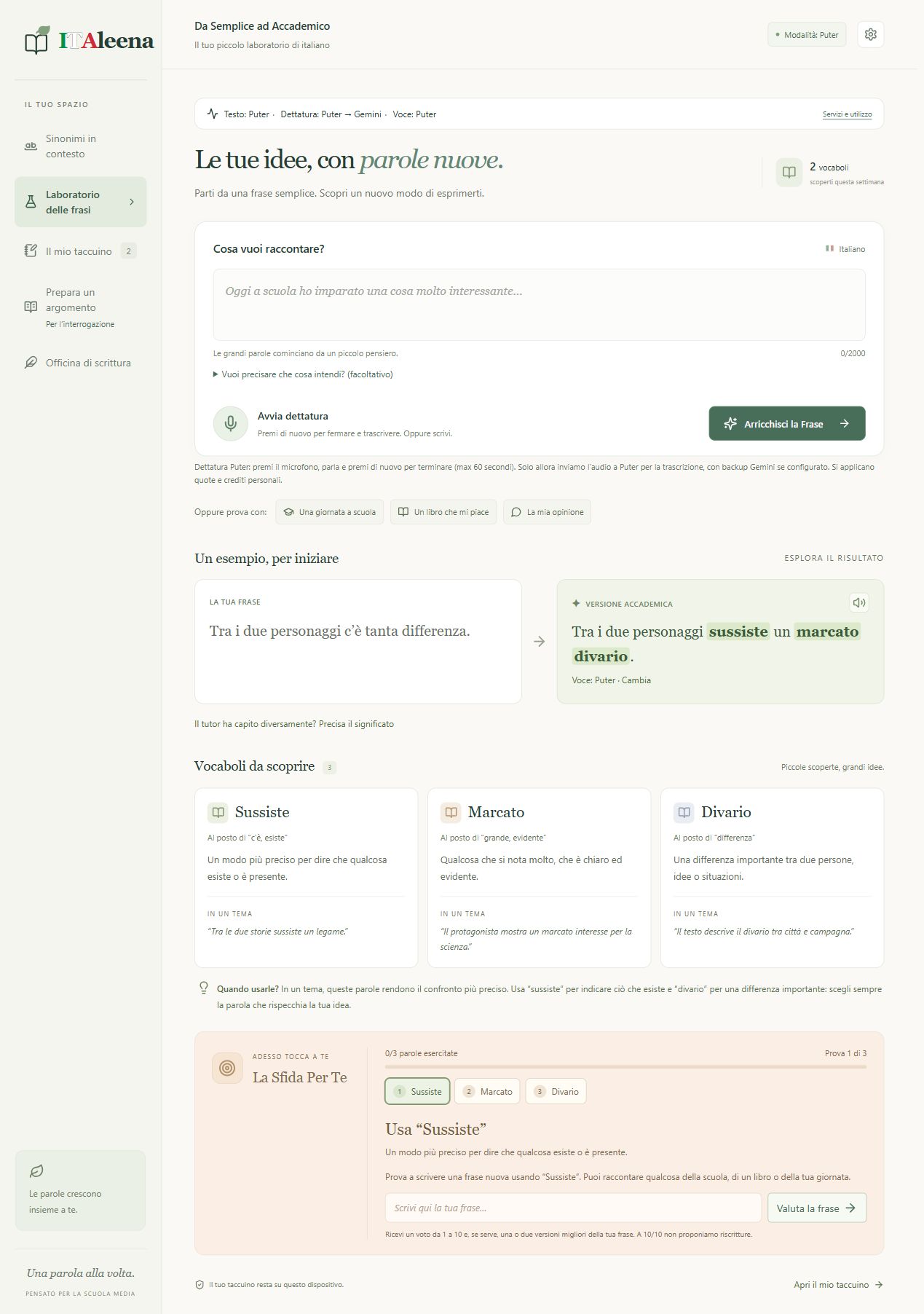
8. Workshop of phrases
Here you start from a daily phrase and discover a more precise and suitable way to a theme to express the same idea.
From your sentence to the result
- Open “Laboratorio delle phrase”. Write in the “The phrase to be enriched” box, up to 2,000 characters, or use the dictation of chapter 6.
- You read the transcript and correct any wrong names or words. The tutor cannot know for sure what you meant.
- If a word is ambiguous, open “Do you want to clarify what you mean? (optional)”. Write the desired meaning, for example “I understand that it has come to see me”.
- In the result you find “Your sentence” and “Accessive Version”: on the computer they are side by side, on the phone one follows the other. Compare them: the idea must remain yours.
- Read “Vocaboli to discover” and the context advice. The words highlighted in the phrase help you find them. Press the speaker to listen to the academic version.
- If the tutor has misunderstood, use “The tutor has understood differently? Precise the meaning”, clarify and ask for the transformation. Do not memorize a phrase that changes your idea.
What is saved
- Successful results automatically enter the words of the notebook with words. The initial example serves to understand the page and is not your saved phrase.
- The history of phrases keeps up to 200 recent voices. It periodically exposes. An error of service does not produce a result or an invented vote: it keeps the input and retry calmly.
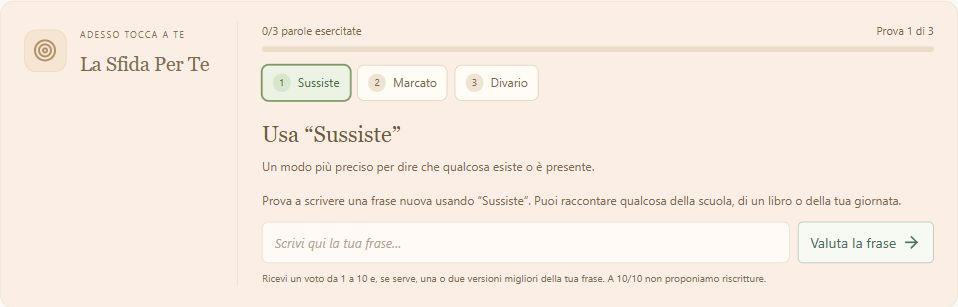
9. The Challenge For You: learn using the word
Reading a word is the first step. Using it in a new phrase helps you understand if you really understood it.
One word at a time
- Each term has a separate test. Progress indicates how many tests you have done, not how smart you are, or how experienced you are.
- Read the delivery and write your own phrase in the field “Write a sentence with a new word”. Use the right meaning, not only the word.
- Press “Empty the sentence” or the arrow. The tutor controls the use of the word, grammar, clarity and relevance.
- You get a full vote of 1 to 10 and a comment. Below 10 are one or two better versions of the same idea.With 10/10 no rewritings are proposed.
- Read why, then you change the sentence if you want to try again. If you change the text, the old feedback is not valid for the new version: you need a new evaluation.
- After the evaluation use “Next word”, when present, or choose another term. Continue to cover all vocabulary, without having to put them in the same sentence.
An example and a useful habit
- With “divary” you can write: “The library helps to reduce the gap between those who have many books and those who have few.” Ask yourself what difference you are describing.
- A high vote does not show a definitive mastery. If an explanation seems wrong, compare it to an adult or dictionary.
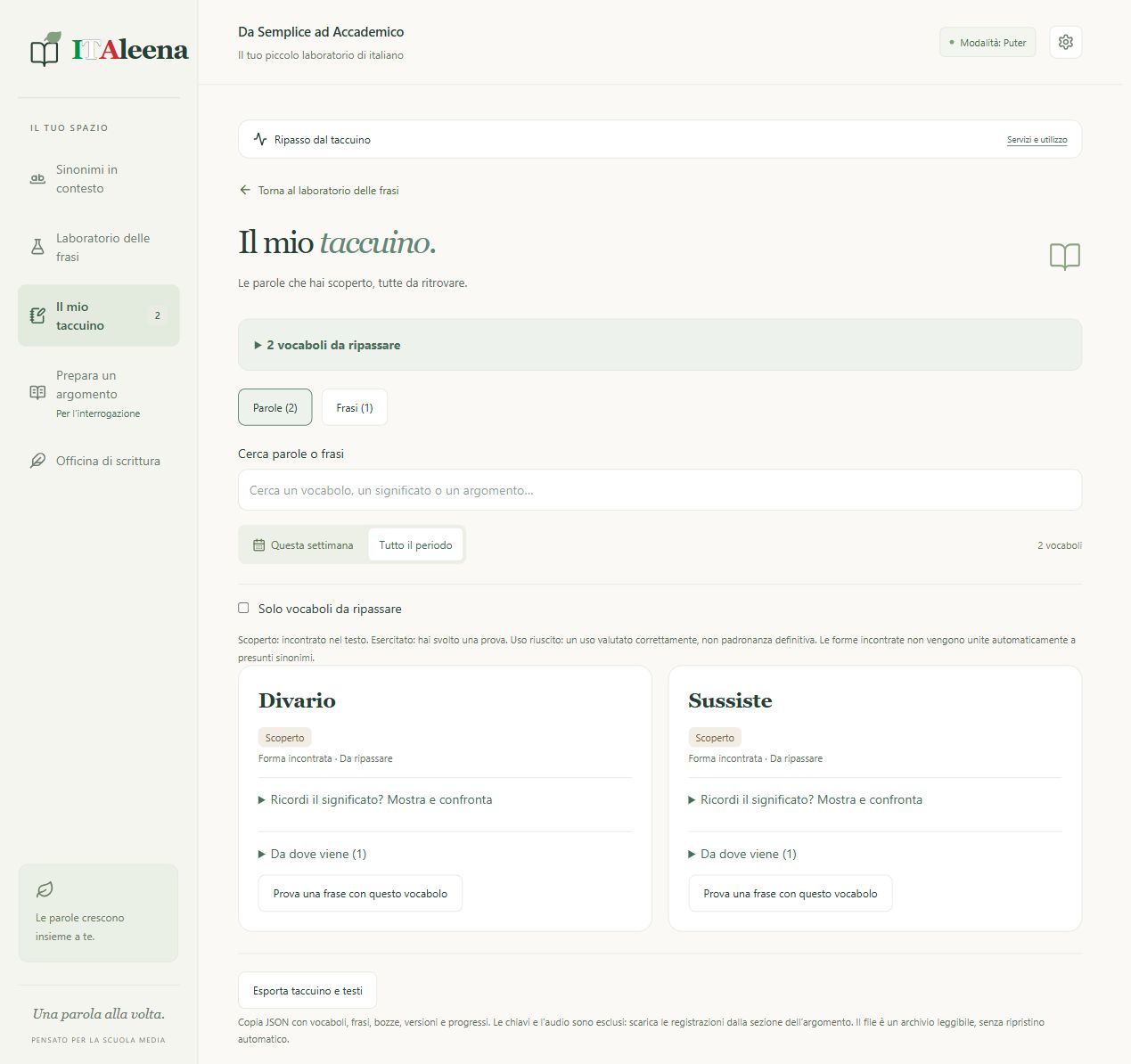
10. My notebook
It is your collection of words and texts on this device. You can search, review and understand where every word comes from.
Search and retrace
- Open the notebook. “Parole” shows the words shared by phrases, arguments, already evaluated writings and saved synonyms; “Frasi” shows the laboratory history.
- Write in “Search words or phrases.” Choose “This week” or “All the time”. If you seem to miss a word, check first search and filters.
- “Only words to be retaken” narrows the list to the suggested rips. After a saved retaliation, the proposal reappears after about three days, according to the date of the device.
- First try to remember the meaning; then open “Remember the meaning? Show and compare”. “I compared what I remembered” is your self-assessment: it does not assign an AI vote.
- “From where it comes” lists the sources: Phrases, Exhibition, Writing or Synonym. A word can have more sources. “try a phrase with this word” opens the challenge.
Understand labels
- Discovered: you met the vocabolo. Exercised: you did a test. Successful use: there is a correctly evaluated use. They are not master certifications.
- In the phrases, “Open and repass” reopens the result with the tests. Versions of the same sentence can be grouped: expand the group to see the others.
Eliminate and export
- For a phrase, use “Elimina”. For a synonym, open the source and use “Delete this source.” If there are other sources of vocabulary, they remain available.
- “Annulla” allows you to restore within 8 seconds and then disappear. Don’t wait if you have mistakenly deleted.
- “Export notebook and texts” downloads an archive JSON With texts, drafts, versions, synonyms and progress, it does not include keys or audio recordings. There is no command to automatically reload it in the app: it is a readable copy, not a complete recovery.
11. Prepare a topic: for the question
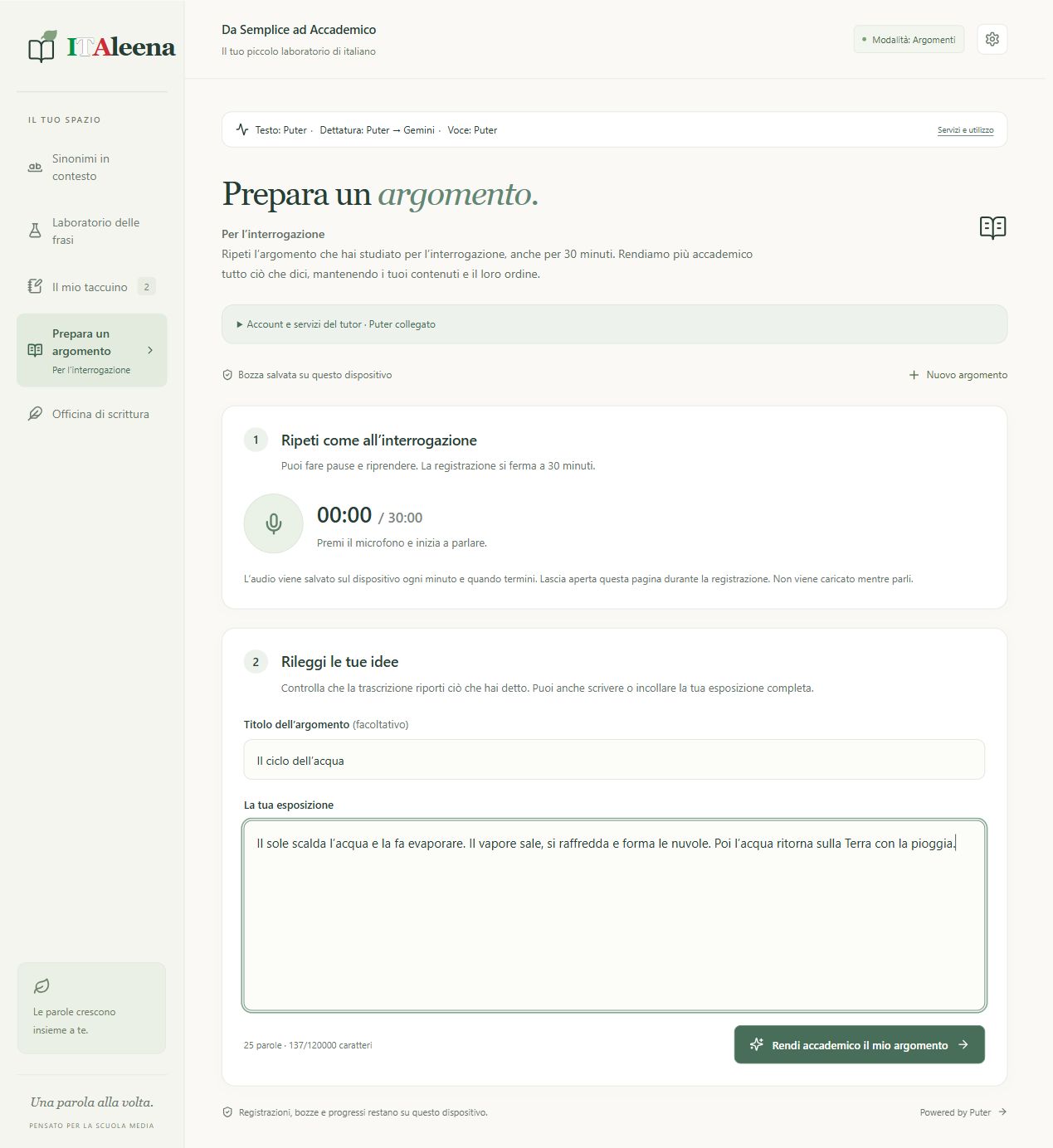
Repeat all the topic you studied and then work on the form of the entire exhibition.
Register and transcribe
- Open “Prepare a topic.” If you need to open “Account and tutor services” and configure a service allowed. You can also write or paste your exhibition directly.
- The total limit is 30 minutes. You can use “Pause” and “Resume”.
- To finish press the square. Pause does not mean stop. Wait for the last part to be saved: until then other commands can remain disabled.
- Press “Transscribe registration” when it appears and becomes active. During registration the app saves parts locally of about a minute; it does not charge them while you speak.
- The trial transcription Puter and, in case of problems, a key Gemini available. Respect the limits indicated at the start of the guide. The number of processed parts appears during the work.
- Keep the original using “audio download” or single-part download when available. If you stop or fail a part, keep audio and text before retrying.
Correct all exposure
- Add an optional title and read “Your exposure”. Fix transcription errors. It takes at least 40 characters to activate “Academic return my topic”; the field comes to 120,000 characters.
- The long contents are processed in several parts. Wait; do not close the page. In case of error the transcribed text remains the basis to be kept.
- The goal is to keep your content and order, improving the language: it does not replace the study or a verification of the facts.
- Use reading with Puter to listen, repeat with your words and do the proof of the words. Start another reading stops the previous one.
- In “Your arguments and drafts” reopen the work. “New topic” begins another path. To remove a subject or draft use the corresponding Elimina and read the notice: the cancellation may concern the registration of the draft. Cancel is available for 8 seconds.
12. Writing workshop: choose the mission
The goal is to become more autonomous in writing, not to get a topic made by AI to copy.
Starting
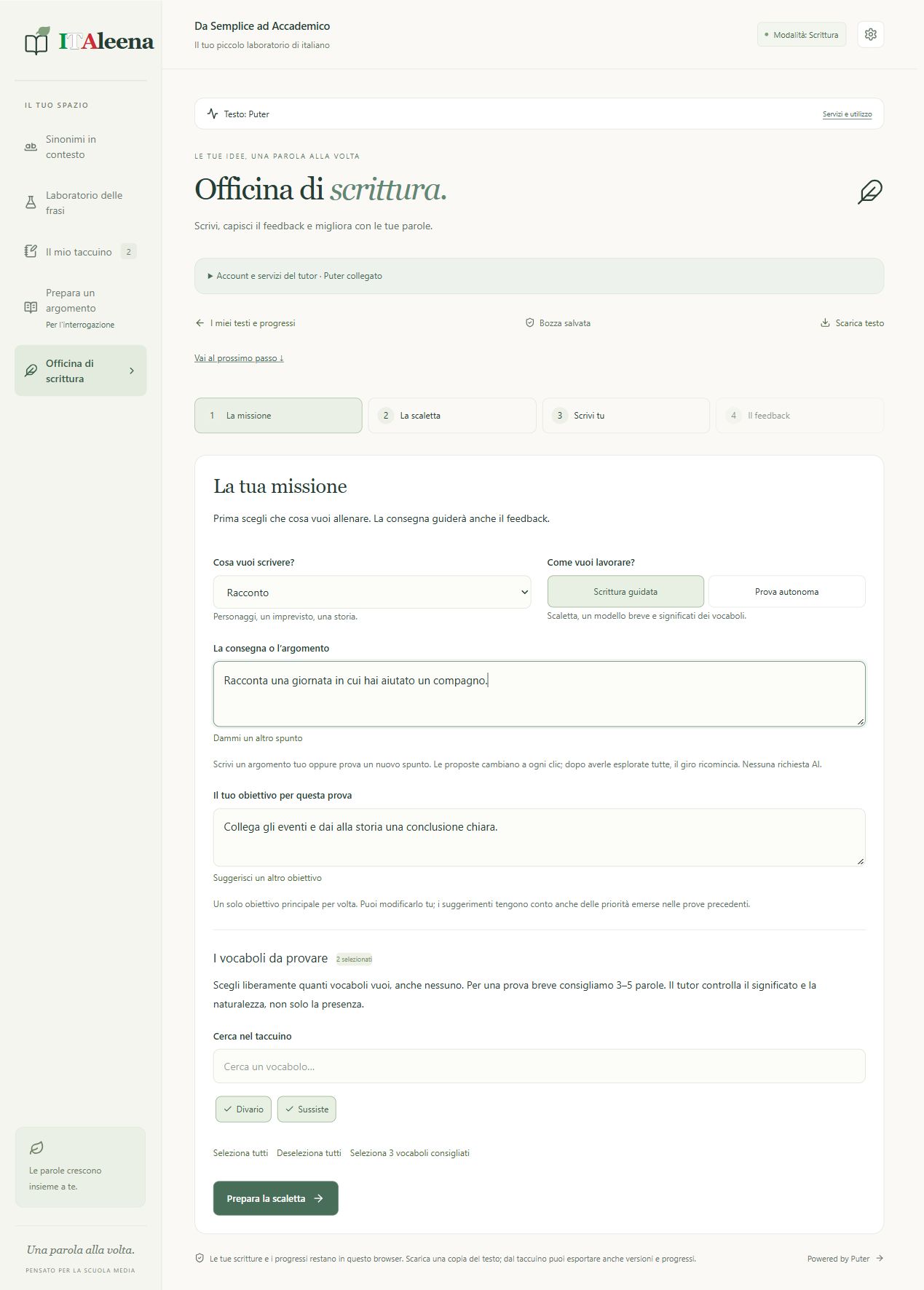
- Open Writing workshop. “Discover your starting point” proposes a first test; “New writing” opens a new job. “My texts” allows you to reopen drafts and versions.
- Choose the genre: Tale, Theme, Description, Biography or Argumentative Text. For a biography use verified facts and not invent information about real people.
- Choose Guided Writing if you want ladder and media, or Try autonomous if you want to test yourself without the same help.
- In “The delivery or the topic” you write, or press “Stop me a point” / “Give me another point.” Each click proposes another idea; after exploring the group, the tour starts again.
- In “Your goal for this test” choose only one main improvement. You can change it or press “Suggest another goal”: also this suggestion is local.
- In “Search in the notebook” find and select how many words you want, even zero. Select all, Deselect all three recommended are shortcuts: there is no obligation to use all words in each text.
- To begin with, you need 3-5 words for delivery. Using many meaningless words does not improve the text. If you change gender, check that delivery, goal and old notes are still consistent.
13. Scaletta, text and feedback request
Think, write, read, the tutor only intervenes when you ask.
First he organizes ideas
- In the “Prepare ladder” wizard, write short notes in the fields: characters, place, problem and solution for a story; the questions change according to the genre.
- Press “I’ll write now.” The ladder accompanies you: you don’t have to turn every note into a paragraph of the same length.
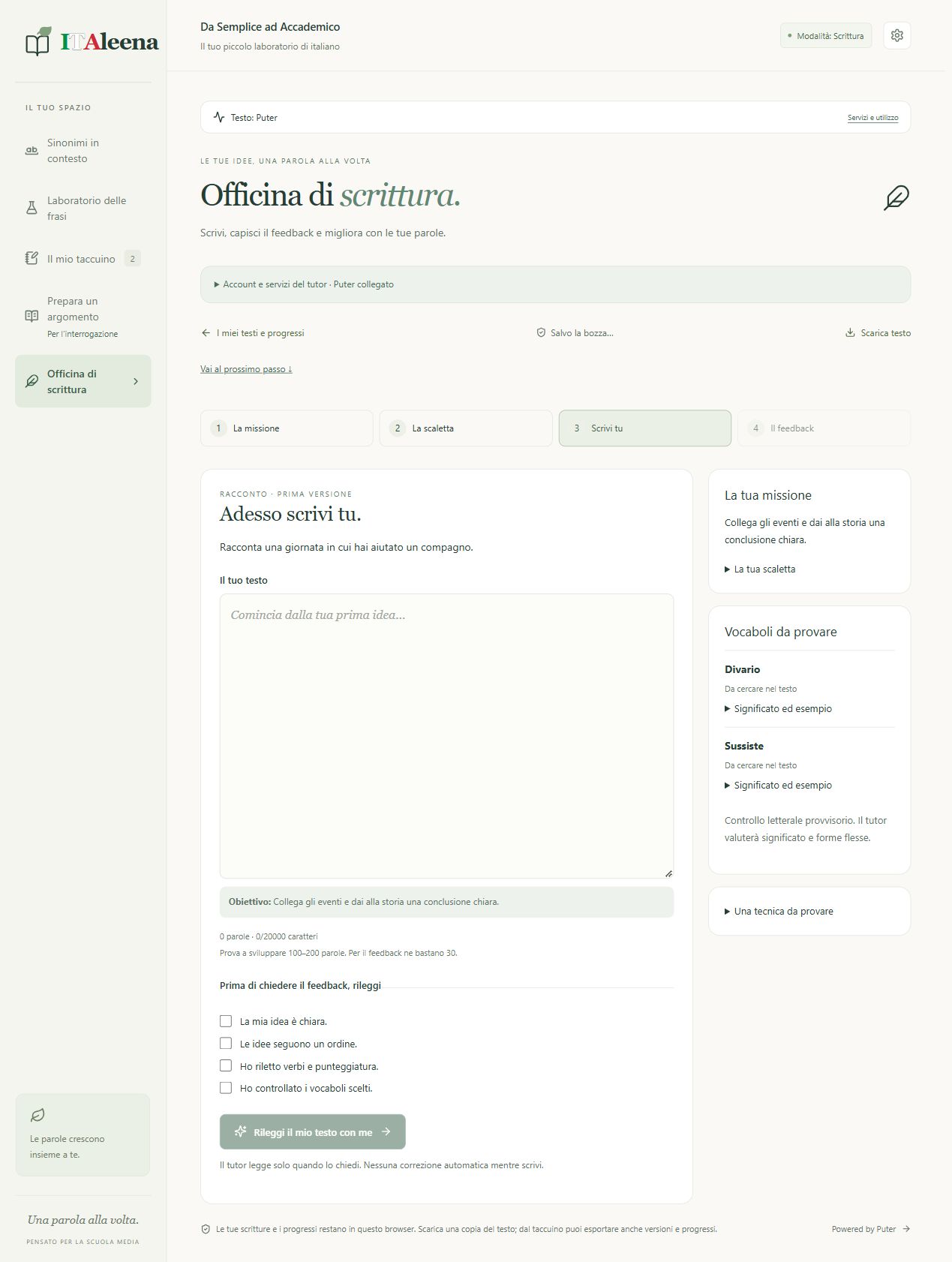
- Write in the field “Your text”. Try to develop 100-200 words for an exercise; the technical limit is 20,000 characters. The feedback request is activated by 30 words, not by 30 characters.
Before sending
- Read and check the four tests: clear idea; order of ideas; verbs and punctuation; chosen words. Spouses are a help to reread, not a test with perfect answers.
- The tutor receives the text and the context of the task: gender, delivery, goal, chosen words and, for revisions, previous material necessary for comparison.
- If the button is gray, check the number of words and all the spuns. After a review, you also need a brief reflection, of at least 8 characters, on what you have changed.
- Expect the status “Bozza saved” before leaving. Use “Download text” for a copy of the text and notebook to export even versions and progress.
14. Understanding feedback and improving
The feedback shows you where to intervene. Read a successful point first and then choose a concrete priority.
Things to look for
- “This works well” indicates what you can store. The four skills concern ideas and content, organization, grammar and vocabulary.
- Read the clues and examples from your text. Try to correct yourself before you open “Explain” or “Show a correction”.
- Check “The words in your writing”: it distinguishes correct use, use to improve and unused words. A present word is not necessarily well used; correct flexural forms can be accepted by the tutor.
- Do the little exercise and then, if you want, open “Show a possible solution”. It is a possible solution, not the only one.
- You have a doubt? Write a concrete question and press “Call to the tutor”. Each explanation uses the online service; the app’s limit is 10 questions per writing. Don’t enter secrets in the question.
Review without losing your voice
- “Impress my text” reopens the writing to be edited: it does not automatically deliver a perfect theme. Work on one or two priorities, without replacing all your ideas.
- Explain “What have you changed and why?”, read, re-release, and ask for a new feedback. You can review previous versions.
- When available, “Security on a new topic” checks the transfer of the ability.For guided tours it is unlocked after at least two evaluations; for initial testing it is available after its feedback.
- Progress is based on the evidence available. The term “More safe” requires success at the first autonomous sending on at least two different topics.
- If the AI is wrong, you are not obliged to accept the advice. Ask questions and compare with the book or teacher. You can delete a writing from “My texts”; the restoration is temporary, when indicated by the notice.
15. If something doesn't work
First keep your text. Then read the message and choose the right control: press many times can consume other requests.
Message and next action
- “The service is not available”: it can be a temporary problem, network or supplier. Wait and try again. You don’t need to change all fields.
- “Limite requests or credit”: open Services and use and check the supplier’s account. Wait for the recovery of the quota or ask the adult. Don’t add accounts to bypass the limits.
- “Modello not available for this account”: access, area, project or model may not be compatible. Please check for the adult service; a free account does not guarantee each model.
- “Collegate Puter”: Access is missing or expired. Open the settings and reconnect if your use is allowed.
- “The dictation has stopped”: you can write by hand. Check microphone, network and browser compatibility. Before choosing another engine read where the voice will be sent.
- “Trascribe” is not active: it really ends the registration with the square and wait for the final rescue. If all the parts are already transcribed, there is nothing to send again.
- “Academic text is not complete”: it keeps transcription and audio. Try again when the service is available; for a very long job it considers shorter parts, keeping you a full copy.
- No sound: control volume, silenced card and voice service. For Puter you need access and credit; for the device you need a voice available in the chosen language. Try “Listen a test” in the settings.
- Missing data: Check the same device, browser, profile and address. https://italeena.com/, The passage to the public site does not automatically transfer keys and notebooks: it configures the service on the new address and keeps a copy of the previous work.
What the indicator really says
- Services and usage shows local attempts and states, separated by text, dictation and voice. It is not the official balance or the exact number of requests left. It may not include uses from other devices or other apps.
- For assistance, please contact us quizpatentepertutti@gmail.com. Indicate section, button, message and browser. Do not send keys, passwords or private audio. For a minor, write the message to an adult.
16. A small training and the project
Better an exercise understood that many answers copied.
A 15-minute routine example
- 3 minutes: explore a word with a context and choose a synonym that you understand.
- 4 minutes: improves a sentence and invents a new phrase for the challenge.
- 3 minutes: go back from the notebook without opening the definition immediately.
- 5 minutes: Write a short paragraph in the workshop or repeat a part of the topic. Choose one thing to improve. You don’t have to complete all sections every day.
Three questions before closing
- Which word do I understand better? In what context will I use it? What error do I want to check next time?
- Wait for the rescue, download what you need and close the microphone. If you use a shared device, protect the profile and accounts.
Because she was born ITAleena
- My name is Haq Rizwan ulI created it. ITAleena The idea is to offer a clear help to find more precise words, prepare an exhibition and learn how to write more confidently.
- If you want to propose a function, report a problem or suggest an improvement, please contact me: quizpatentepertutti@gmail.com. Proposals help to grow the project. You do not need to send personal data of the child or the child.
- This guide describes only the functions actually present in the verified version. Examples in the images are demonstrative.
17. Privacy and contacts
Privacy concerns what remains on your device and what you send to online services. Read the full information below along with an adult.
1. Ambito, manager and contact
- This information describes the operation of the app ITAleena, whose public address is https://italeena.com/. Project manager and referent: Haq Rizwan ul. Contact for assistance and privacy: quizpatentepertutti@gmail.com. The public domain has been communicated by the manager; the details of the hosting provider and its configuration have not been communicated.
- For the public service the operator must complete and verify the information not yet documented: contacts and identification of the owner, any relevant location, hosting and logs, legal bases, roles of suppliers, guarantees of transfers, retention times and procedures applicable to minors.
2. The privacy explained in a simple way
- The notebook lives in this browser. When you ask a tutor to correct a text, that text is sent out of the device to the used service. When you ask for a transcription, the recording is sent; when you ask for a reading, the text is sent to read.
- Use invented examples, don't tell secrets and don't register other people. If anything worries you, stop and ask an adult, you don't have to send personal data to practice on the lexicon.
3. Data processed and purpose
- Settings, voice engine, preferences and keys API: allow you to configure and authenticate the chosen services. Phrases, synonyms, topics, writings, revisions, tests and feedback: allow exercises, preservation of work and resumption.
- Recordings: are used to transcribe and recover exposure or dictation interrupted. Local status and counts of services: help explain errors and use; they do not constitute the official balance of the supplier.
- An account is not required ITAleena. Accounts of Puter, Google and OpenAI If you write to the email contact, name or address of the sender and content of the message arrive at the help box: do not attach unnecessary information.
4. Local saving and conservation
- The code uses localStorage for preferences, keys, phrases, saved, resumes and service counts. IndexedDB The data is separated by site origin and browser profile; there is no synchronization of the notebook implemented to an archive ITAleena.
- The phrases are limited to the 200 recent entries; the other archives have their own technical checks and limitations. There is no general automatic expiry of texts and audio. They remain until deletion, replacement provided by the stream, cleaning of the browser or loss of the local memory.
- The reclaimable dictation audio is normally removed after a successful transcription; if the transcription fails it can remain for a new attempt. The recordings of the arguments remain in the local archive until they are eliminated with the related work.
- Synthetic audio for listening is kept mainly in the memory of the current visit.The copies exported and the downloads remain instead in the files of the device and must be managed separately.
5. When and to whom the content is sent
- Tutor text: with search, enrichment, evaluation or demand, the required content and the necessary educational context are sent. In the workshop can be included delivery, goal, words, scale and previous versions for comparison.
- The automatic route can pass from Gemini Primary a Secondary and then to Puter, according to the type of error; on quota/rate limit does not rotate the second key Gemini. The path OpenAI can use Puter as backup. The same content can then reach more providers if a first attempt fails.
- Lecture and topics: Puter is the first transcription service in its path; in case of a problem it can sub-enter a key Gemini available. Whisper sends the audio directly to OpenAI. Web Speech The local recording of the topic is uploaded when you start Transcript, not while you’re talking.
- Reading: the text is sent to Puter or Google if you choose those items. Device entries depend on the system/browser and should not be described as necessarily offline. Puter can involve AI suppliers below: it is not equivalent to exclusively local processing.
6. Credentials, external services and security
- The keys are sent to the respective supplier in HTTPS requests; the code does not have a backend ITAleena However, saving in the browser is not a encrypted safe: people or software with access to the profile can read it.
- Puter uploads an external script from js.puter.com and manages its access. This implies connections to third parties even without an AI request. The session and provider identifiers are subject to its rules; the scripts authorized on the page are part of the context of trust.
- This does not exclude network or hosting logs, cookies or telemetry of external services. The public site may generate technical logs of access, such as IP address, date, resource request and browser. Hosting provider, log duration and tools actually active must be confirmed by the operator: they are not invented and do not declare “no cookie” or “no collection”.
- It is not guaranteed that the data sent to suppliers remain in the EU. Location, conservation, possible use for improvement of models and guarantees of transfers depend on service, account, contract and area.
7. Minors and Supplier Conditions
- An adult's supervision is necessary to evaluate accounts, credentials, costs and data processing. ITAleena does not implement age verification or a verified collection of parental consent.
- Restrictions Gemini API described in Chapter 1 prevents you from presenting it as an ordinary option for this app aimed at minors. Puter provides for a minimum age; OpenAI API The voice or tasks of a minor may contain personal data even without a full name.
- School use requires an assessment by the school on its roles and obligations.This app does not replace an approved school environment or document such approval alone.
8. Control, deletion and copies
- You can change the text before sending, choose a service allowed or not to use the functions online. Do not give permission to the microphone if you prefer to write. An cancellation stops the local wait but does not guarantee the collection of data already sent or the absence of charges for a request started.
- You can delete sentences, synonymous sources, arguments, drafts or writings with the commands of the respective sections. When it appears Cancel, the restoration is available for 8 seconds. A vocabulary with other sources can remain in the notebook; the relays are a distinct archive.
- To remove all local data, you use, with an adult, browser controls on the data of this site, including local memory and database. First you export what you want to store: this operation can be irreversible. For a complete removal, you can also check the downloads, profiles and other sources or ports used.
- To cancel or revoke accounts, keys and data already sent, use the controls and contacts of the relevant provider. ITAleena cannot remotely access local notebooks and cannot automatically delete copies stored by Google, OpenAI or Puter.
9. Rights, legal basis and requests
- For personal data actually processed by the operator, the rights of access, rectification, deletion, limitation, opposition and portability provided for by the controller apply, when the conditions apply. GDPR. You can contact the contact indicated and, if necessary, to the competent authority, in Italy the Data Protection Authority.
- The microphone consent is a technical permission of the browser: it does not demonstrate on its own a valid legal basis for each subsequent treatment. The operator must define before public or school use the appropriate bases for each purpose; they are not invented in this statement.
- Please do not send keys, passwords, identity documents or audio documents of minors in the first email. Indicate the problem with the only necessary data; any further verifications must be motivated by the recipient.
10. Updates and references
- This information is updated on 13 November 2026. If you change hosting, services, data collected or operating, this information and the guide must be updated prior to its use.
- The official links at the bottom of the page allow you to check conditions and information. The odds and requirements can change: they are not promises of gratuitousness or legal approvals of the project.
Official sources for adults
Consult for this guide on 13 November 2026.